

State Based Favicons (Tab Alerts) in Vue

Give your users a tiny, delightful heads‑up—even when the tab is in the background. In this guide, you’ll learn pragmatic patterns to turn application state (unread counts, errors, recording, online/offline, progress) into dynamic favicons in Vue and Nuxt.
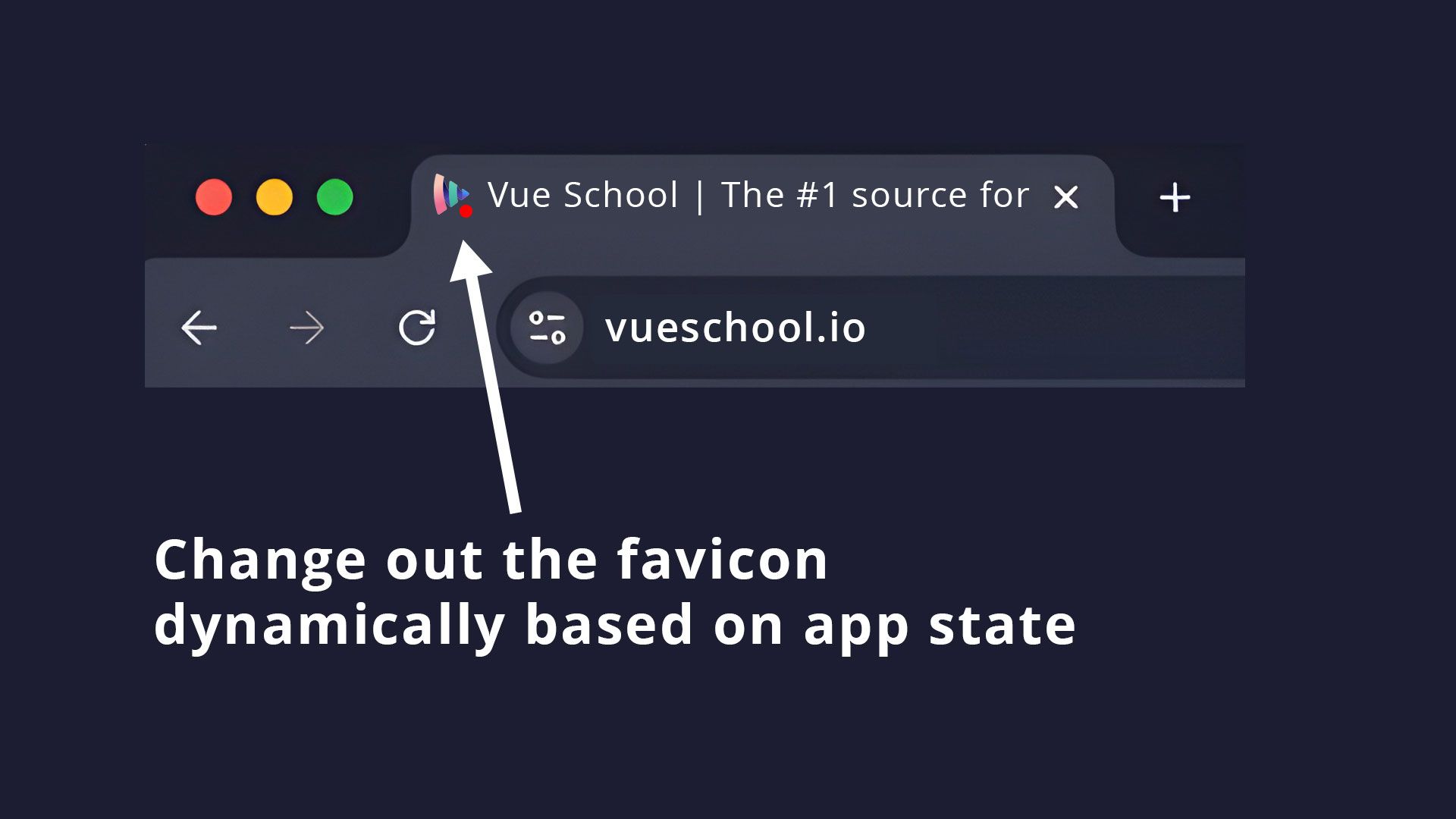
TL;DR: With VueUse’s useFavicon, you can dynamically change out favicons with ease. This alone is enough for most use cases but you can even combine with the canvas for completely custom favicons.
Why state‑based favicons?
- Micro‑feedback: Notify users without intrusive modals/toasts.
- Background visibility: Still visible when the tab is unfocused.
- Low‑effort polish: A few lines of code makes your app feel premium.
Common use cases:
- Unread messages indicator (🟢)
- Recording indicator (🔴)
- Build/processing status (⏳)
- Error state (⚠️ badge)
- Connectivity (green/gray dot)
Dynamic Favicon Example with VueUse useFavicon
VueUse ships with useFavicon, a composable that abstracts away favicon management. Instead of manually creating and replacing <link rel="icon">, simply read and write to the reactive ref returned from useFavicon.
Basic usage
<script setup lang="ts">
import { ref } from 'vue'
import { useFavicon } from '@vueuse/core'

// reactive favicon state
const icon = useFavicon()

console.log(icon.value) // /favicon.png

function alertMode() {
  icon.value = '/favicon-alert.png'
}

function normalMode() {
  icon.value = '/favicon.png'
}
</script>
This approach is perfect when you have a few pre‑rendered PNG/SVG favicons (base, alert, recording, offline, etc.).
Integrate Favicon Display with App State
Since useFavicon is reactive, you can tie it directly to your Pinia or local component state.
Example with unread count:
<script setup lang="ts">
import { computed } from 'vue'
import { useFavicon } from '@vueuse/core'
import { useChatStore } from '@/stores/chat'

const chat = useChatStore()
const favicon = useFavicon()

watch(()=> chat.unreadCount, ()=>{
      favicon.value = chat.unreadCount > 0
          ? '/favicon-alert.png'
          : 'favicon.png'
})
</script>
Now the favicon swaps automatically whenever chat.unreadCount changes.
Display a Flashing Favicon Indicator to Grab Attention
Grabbing user attention with a flashing favicon is now as simple as changing out the favicon on a interval.
<script setup>
import { useFavicon, useInterval } from '@vueuse/core';
const favicon = useFavicon();

const favicons = {
  default: '/favicon.png',
  alert: '/favicon-alert.png',
};

favicon.value = favicons.default;

useInterval(1000, {
  callback: () => {
    favicon.value =
      favicon.value === favicons.default
          ? favicons.alert : favicons.default;
  },
});
</script>
You can get a live example of simple favicon changing and the interval example in this Stackblitz playground.
Advanced: Dynamic Badges with Canvas
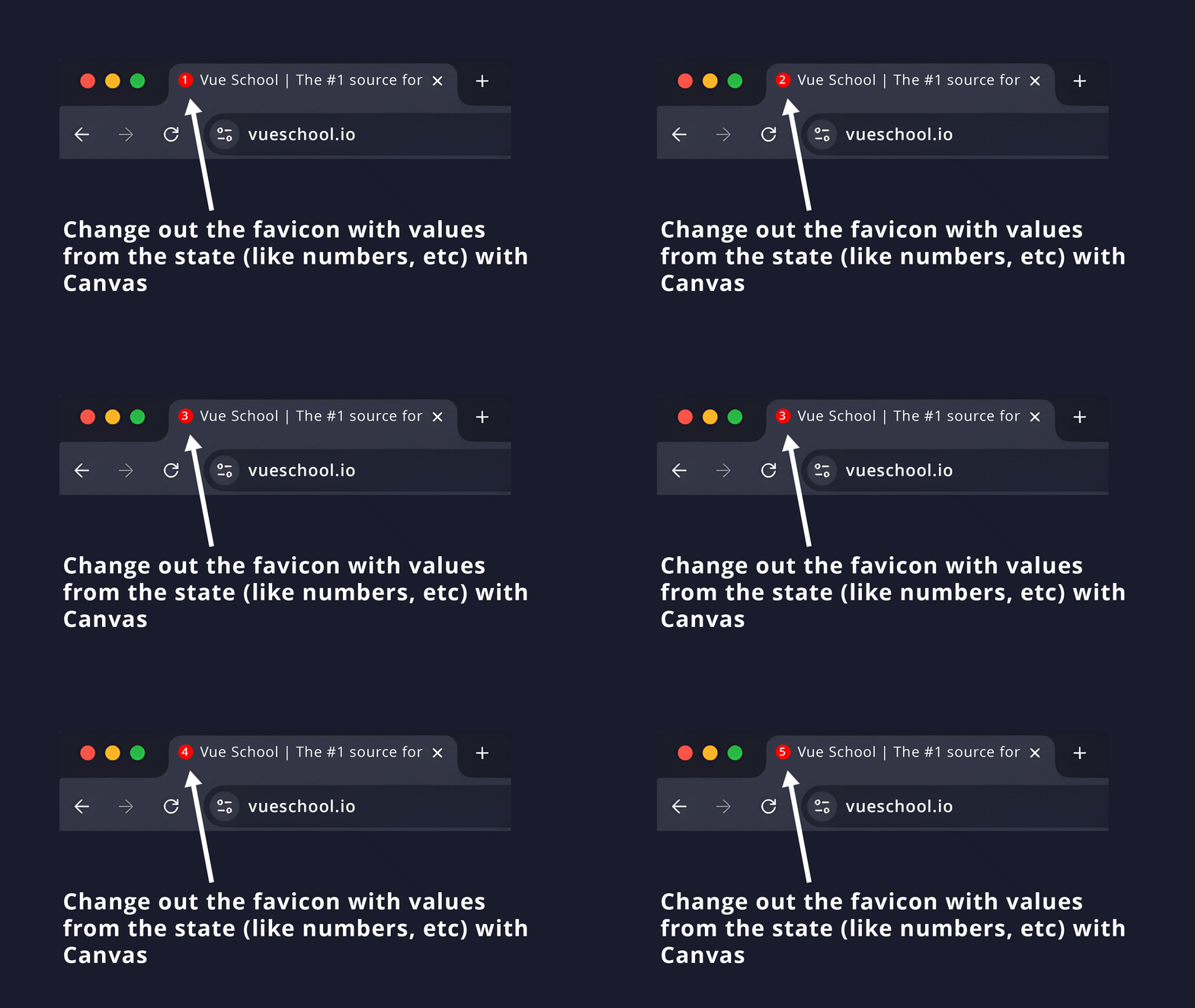
VueUse’s useFavicon works best with static image URLs. But you can also customize the image precisely to the state with the canvas. For favicons like unread badges with an exact number count, you can generate a canvas image and then feed its data URL into the same composable.
First, you’ll want to create a function that draws an image to the canvas.
// src/utils/dynamic-favicon.ts
export function drawFaviconBadge(count: number): string {
  const size = 64
  const c = document.createElement('canvas')
  c.width = c.height = size
  const ctx = c.getContext('2d')!

  // background circle
  ctx.beginPath()
  ctx.arc(size / 2, size / 2, size / 2, 0, Math.PI * 2)
  ctx.fillStyle = '#e11d48' // red
  ctx.fill()

  // label
  const label = count > 99 ? '99+' : String(count)
  ctx.fillStyle = '#fff'
  ctx.font = `bold ${Math.floor(size * 0.5)}px system-ui, sans-serif`
  ctx.textAlign = 'center'
  ctx.textBaseline = 'middle'
  ctx.fillText(label, size / 2, size / 2 + 1)

  // you could also print your images to the canvas for even more customization
  // but we don't show that here

  return c.toDataURL('image/png')
}
Then use that function to generate the image and set it as your favicon.
<script setup>
import { useFavicon, useInterval } from '@vueuse/core';
import { ref, watch } from 'vue';
const favicon = useFavicon();
import { drawFaviconBadge } from './utils/dynamic-favicon.ts';

const count = ref(0);
favicon.value = drawFaviconBadge(count.value);

watch(count, () => {
  favicon.value = drawFaviconBadge(count.value);
});
</script>
<template>
  <button @click="count++">Increment</button>
  <button @click="count--">Decrement</button>
</template>
Dynamic Favicons in Nuxt 3/4
Nuxt plays nicely with useFavicon. Just install the VueUse Nuxt module and everything else stays the same!
npm install @vueuse/nuxt @vueuse/core// nuxt.config.ts
export default defineNuxtConfig({
modules: ['@vueuse/nuxt']
})Browser Favicon Quirks & Gotchas
- Safari caching:
useFaviconalready replaces the link element, which helps, but cache‑busting (?v=123) may be needed. - Cross‑origin images: Only serve favicons from same origin or with permissive CORS.
- Dark mode: Provide separate icons that look better on a dark background (
favicon-dark.png) and combine with VueUse useDark for the best output.
Vue Dynamic Favicon Wrap-up
VueUse’s useFavicon makes dynamic favicons in Vue apps trivial. For simple cases, swap between static icons. For advanced cases, generate data URLs with canvas and let VueUse handle the rest. A tiny UX touch—yet your users will notice.
Start learning Vue.js for free

Comments
Latest Vue School Articles

5 Component Design Patterns to Boost Your Vue.js Applications

Vibe Coding a Collaborative Editor with Comment Support with Nuxt UI and Jazz

Our goal is to be the number one source of Vue.js knowledge for all skill levels. We offer the knowledge of our industry leaders through awesome video courses for a ridiculously low price.
More than 250.000 users have already joined us. You are welcome too!
© All rights reserved. Made with ❤️ by BitterBrains, Inc.