
Setting Up Your IDE for Nuxt UI: A Complete Guide

When working with Nuxt UI, a properly configured IDE can dramatically improve your development experience. From intelligent autocomplete for component props to AI-powered assistance, the right setup transforms how you build with Nuxt UI. Let's walk through the essential configurations that will make your IDE work for you, not against you.
The Essentials
1. Vue Official Extension
If you install nothing else, install the Vue Official Extension for Vue/Nuxt developers. It provides syntax highlighting, autocomplete, and more for Vue components.
2. Tailwind CSS IntelliSense
Another essential extension is the Tailwind CSS IntelliSense extension for VS Code. Nuxt UI is built on Tailwind CSS, and this extension provides autocomplete, linting, reorder formatting, hover preview, and more for Tailwind classes.
But here's the thing—you need to configure it properly for Nuxt UI's unique patterns. Create or update your .vscode/settings.json file with these settings:
{
  "files.associations": {
    "*.css": "tailwindcss"
  },
  "editor.quickSuggestions": {
    "strings": "on"
  },
  "tailwindCSS.classAttributes": ["class", "ui"],
  "tailwindCSS.experimental.classRegex": [
    ["ui:\\s*{([^)]*)\\s*}", "(?:'|\"|`)([^']*)(?:'|\"|`)"]
  ]
}
Let me break down what these settings do:
files.associations: Treats your CSS files as Tailwind CSS files, enabling IntelliSense in your stylesheetseditor.quickSuggestions: Enables autocomplete inside string literals (like class values)tailwindCSS.classAttributes: Tells the extension to provide autocomplete for bothclassanduiattributes (Vue component props)tailwindCSS.experimental.classRegex: The secret sauce—this regex pattern enables autocomplete inside Nuxt UI'suiprop when you customize variants.
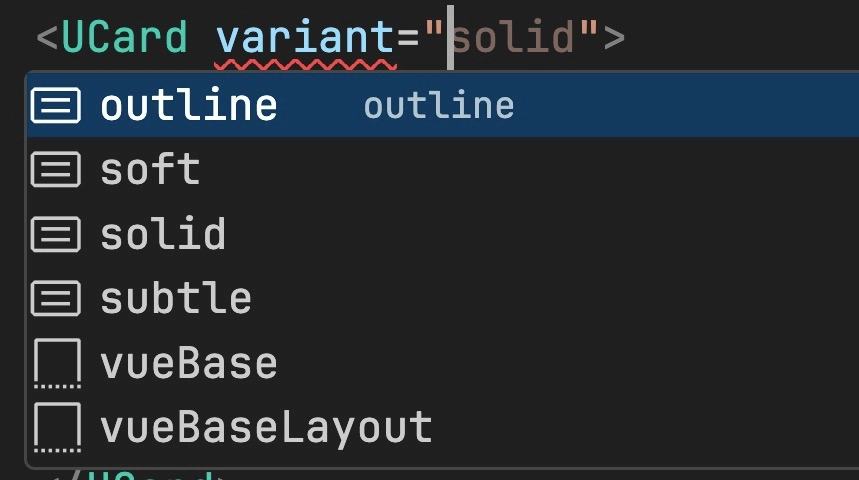
With this configuration, you'll get intelligent suggestions when customizing components:

Another useful tip when working with Tailwind CSS is to turn on word wrapping to see the entire class list in the editor without having to scroll horizontally. That's a simple setting to add to your .vscode/settings.json:
{
  "editor.wordWrap": "on"
}
TypeScript Support: Zero-Config Intelligence
Nuxt UI ships with TypeScript support out of the box. When you install @nuxt/ui and add it to your modules, you automatically get:
- Full type definitions for all components
- Prop validation and autocomplete
- Type-safe component customization via the
uiprop - IntelliSense for theme configuration in
app.config.ts
So long as you have the Vue Official Extension installed, you'll get autocomplete for component props, slots, and events.
ESLint Configuration: Keep Your Code Clean
For a modern ESLint setup with Nuxt UI, use the official @nuxt/eslint module, which supports ESLint's flat config format:
npx nuxi module add eslintThis module provides project-aware linting with sensible defaults for Nuxt and Vue development. It automatically:
- Lints
.vue,.ts, and.jsfiles - Understands Nuxt's auto-imports
- Has project-aware Nuxt-specific settings (also supports layers).
- Supports ESLint v9's flat config format.
You can configure ESLint to your liking with an eslint.config.mjs file in your project root.
//
eslint.config.mjs;
import withNuxt from "./.nuxt/eslint.config.mjs";

export default withNuxt();
// your custom flat configs go here, for example:
// {
//   files: ['**/*.ts', '**/*.tsx'],
//   rules: {
//     'no-console': 'off' // allow console.log in TypeScript files
//   }
// },
// {
//   ...
// }Formatting with ESLint
You can also opt-in to formatting with ESLint by adding the following to your nuxt.config.ts:
export default defineNuxtConfig({
  modules: ["@nuxt/eslint"],
  eslint: {
    config: {
      stylistic: true, // <---
    },
  },
});
Finally, turn on linting and formatting on file save by adding the following to your .vscode/settings.json:
{
  "editor.codeActionsOnSave": {
    "source.fixAll.eslint": "explicit"
  },
  "editor.formatOnSave": true,
  "editor.defaultFormatter": "dbaeumer.vscode-eslint"
}
For more details, check out the official @nuxt/eslint documentation.
The AI Advantage: MCP Server Integration
Here's where things get really interesting. Nuxt UI provides an MCP (Model Context Protocol) server that gives AI assistants like Claude Code, Cursor, and GitHub Copilot direct access to component documentation, source code, and usage examples.
What is MCP?
MCP is a standardized protocol that enables AI assistants to access external data sources and tools. Instead of relying on potentially outdated training data, your AI assistant can fetch real-time information about Nuxt UI components, including:
- All available components with categories
- Detailed component props, slots, and events
- Code examples and templates
- Migration guides and documentation pages
This means that your AI autocomplete is more helpful but more importantly, it also means that your agents can use that information to work autonomously with less errors.
See a complete list of available MCP tools for Nuxt UI in the official Nuxt UI documentation.
Curious of other ways to enhance your development workflows with AI? Check out our masterclass on the topic!
Setting Up MCP in Popular IDEs
Setting the MCP server up in your IDE is easy.
- Cursor: Just click here.
- Claude Code: Run
claude mcp add --transport http nuxt-ui-remote https://ui.nuxt.com/mcp - VS Code, Windsurf, OpenCode, and more can be found in the official Nuxt UI documentation.
Additional Quality-of-Life Improvements
Iconify IntelliSense
The Nuxt Icon component that Nuxt UI uses under the hood is based on Iconify. You can get a preview of iconify icons directly in your editor with the Iconify IntelliSense extension.
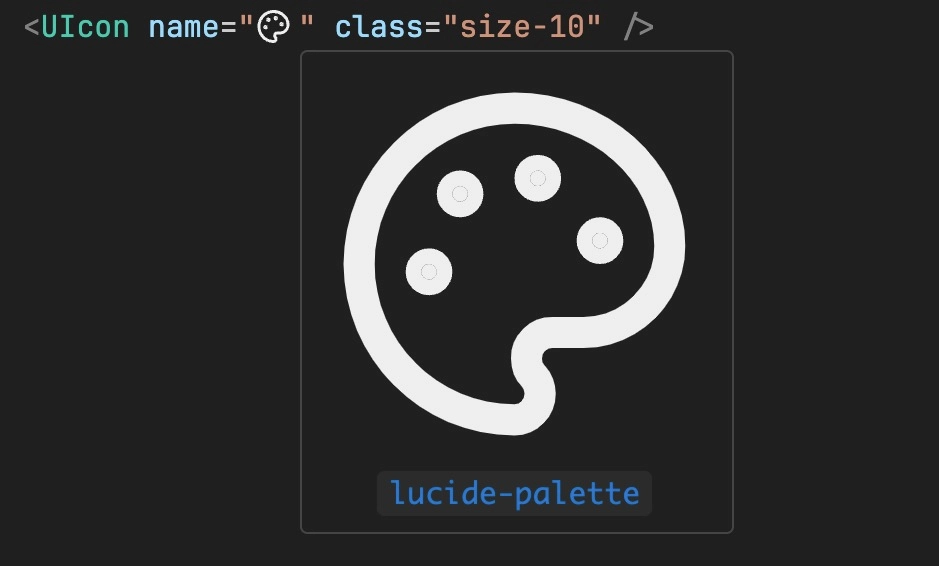
Install the Iconify IntelliSense extension for VS Code.
MDC - Markdown Components Extension
If you're using Nuxt Content with Nuxt UI in your project, you can get syntax highlighting and colon (:) matching for MDC (Markdown Components) files, as well as document folding and format providers, along with component name and prop suggestions.
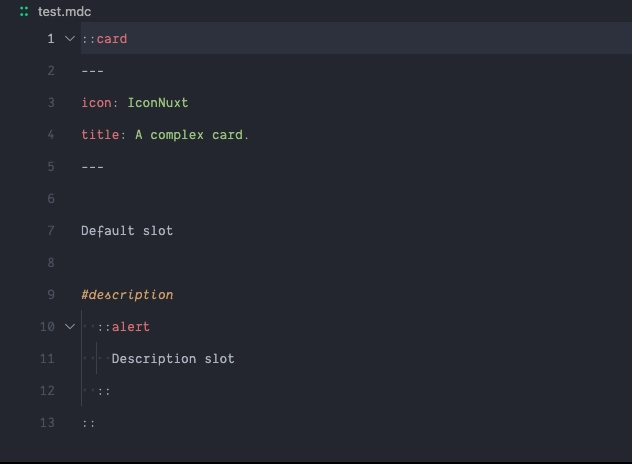
Download it from the VS Code Marketplace here.
A nice markdown preview extension is also a nice addition to this workflow. I use Markdown Preview Enhanced for this (plus other markdown features).
Bringing It All Together
Here's a quick checklist for the complete Nuxt UI IDE setup:
- [ ] Install Vue Official Extension
- [ ] Install Tailwind CSS IntelliSense extension
- [ ] Configure
.vscode/settings.jsonwith Nuxt UI-specific settings - [ ] Verify TypeScript support is working (you should get autocomplete for component props)
- [ ] Set up
@nuxt/eslintfor code quality and formatting - [ ] Configure the Nuxt UI MCP server for your AI assistant of choice
- [ ] Install Iconify IntelliSense extension
- [ ] Install MDC - Markdown Components Extension (if using Nuxt Content)
- [ ] Install Markdown Preview Enhanced extension (if using Nuxt Content)
With these tools configured, your IDE becomes a powerful partner in building with Nuxt UI. You'll spend less time looking up documentation and more time building beautiful, functional interfaces.
A well-configured IDE is the difference between fighting your tools and having them amplify your abilities. Take the time to set these up properly—your future self will thank you every time you open your editor and everything just works.
If you'd like to see a walkthrough of building an admin dashboard with Nuxt UI, checkout our complete course.
Start learning Vue.js for free

Comments
Latest Vue School Articles

Just Released: Nuxt Hub Multi-Vendor and First-Class DB

Vue.js – 2025 In Review and a Peek into 2026

Our goal is to be the number one source of Vue.js knowledge for all skill levels. We offer the knowledge of our industry leaders through awesome video courses for a ridiculously low price.
More than 200.000 users have already joined us. You are welcome too!
© All rights reserved. Made with ❤️ by BitterBrains, Inc.